







UnderAutomation.Yaskawa is a fully managed .NET SDK that communicates with Yaskawa Motoman robot controllers (YRC1000 (micro), MOTOMAN NEXT, DX100 / DX200, FS100, ERC / XRC / MRC) through the High Speed Ethernet Server (HSES) of the controller, over UDP, and through the Ethernet Server (TCP), the web server (HTTP) and the FTP server of the controller. Nothing is installed on the controller.
Use it to read the status, the alarms and the positions, move the robot, select and start jobs, read and write variables and I/O, transfer files, and compute the forward and inverse kinematics of 169 robot models, from a normal .NET application.
- Product page: underautomation.com/yaskawa
- Documentation: underautomation.com/yaskawa/documentation
- Also available for Python: Yaskawa.py, and LabVIEW: Yaskawa.vi.
- Status and alarms: read the status of the controller (mode, servo, hold, alarm), read the last alarms, reset the alarms.
- Positions: read the Cartesian position, the joint position in pulses, the position error and the torque of each axis.
- Motion: servo on and off, Cartesian moves and joint moves, with a speed and a coordinate system.
- Jobs: select and start a job, read the executing job and the job stack.
- Variables: read and write registers, byte, integer, double integer, real and string variables, position variables, base and external axis positions.
- Inputs / Outputs: read and write the I/O signals by address or by type and group.
- Files: list, download, upload and delete files, with a progress callback.
- System: system information, management times (operating, servo and playback time), system parameters, message on the pendant.
- Ethernet Server: the same kind of functions over TCP, with alarm texts, positions in a user or tool frame, encoder temperatures, and a call that waits for the end of a job.
- FTP and HTTP: download, upload and delete files over FTP, read files through the web server.
- Offline kinematics: forward kinematics and every inverse kinematics solution of 169 Motoman arms and
cobots, on the PC, with DH parameters from a catalog or from the
ALL.PRMfile of the controller.
| Protocol | Property of YaskawaRobot |
Port | Enabled by default |
|---|---|---|---|
| High Speed Ethernet Server | HighSpeedEServer |
UDP 10040 and 10041 | Yes |
| Ethernet Server | EServer |
TCP 80 | No |
| HTTP | Http |
TCP 80 | No |
| FTP | Ftp |
TCP 21 | No |
A Windows Forms application shows the features of the SDK. Its source code is in this repository, in
UnderAutomation.Yaskawa.Showcase.Forms.
Download: UnderAutomation.Yaskawa.Showcase.Forms.exe (all releases)
dotnet add package UnderAutomation.YaskawaOr with the NuGet Package Manager console:
Install-Package UnderAutomation.Yaskawa
You can also download UnderAutomation.Yaskawa.zip from the releases page. It contains one folder per target framework. On Windows, unblock the zip file before you extract it (right-click, "Properties", "Unblock"), then reference the DLL of your framework.
using UnderAutomation.Yaskawa;
using UnderAutomation.Yaskawa.HighSpeedEServer;

// The SDK runs in trial mode for 30 days. Register your key to remove the trial limit.
YaskawaRobot.RegisterLicense("Your Company", "your-license-key");

var robot = new YaskawaRobot();
robot.Connect("192.168.0.1");

RobotStatusData status = robot.HighSpeedEServer.GetStatusInformation();
Console.WriteLine($"Servo on: {status.ServoOn}, alarm: {status.Alarming}");

robot.Disconnect();
To change the ports or the timeouts, use ConnectParameters:
var parameters = new ConnectParameters("192.168.0.1");
parameters.PingBeforeConnect = true;                         // default
parameters.HighSpeedEServer.DataPort = 10040;                // default
parameters.HighSpeedEServer.DataTimeoutMilliseconds = 1500;  // default
robot.Connect(parameters);The sections below use the High Speed Ethernet Server, through robot.HighSpeedEServer. The other
protocols and the kinematics follow.
RobotStatusData status = robot.HighSpeedEServer.GetStatusInformation();
Console.WriteLine($"Teach: {status.Teach}, Play: {status.Play}, Running: {status.Running}");

RobotAlarmData alarm = robot.HighSpeedEServer.GetAlarm(RobotRecentAlarm.Latest);
Console.WriteLine($"{alarm.Code} {alarm.Text} ({alarm.OccurringTime})");

robot.HighSpeedEServer.AlarmReset(AlarmResetType.Reset);RobotPositionCartesianData position = robot.HighSpeedEServer.GetRobotCartesianPosition();
Console.WriteLine($"X={position.X} Y={position.Y} Z={position.Z} Rx={position.Rx} Ry={position.Ry} Rz={position.Rz}");
// Pulses of each axis
RobotPositionIntData joints = robot.HighSpeedEServer.GetRobotJointPosition();
Console.WriteLine(string.Join(", ", joints.Axes));
RobotAxisIntData error = robot.HighSpeedEServer.GetPositionError();
RobotAxisIntData torque = robot.HighSpeedEServer.GetTorque();The robot must be in remote mode, see "Configure the robot" below.
robot.HighSpeedEServer.SetServo(true);

// Cartesian move: mm and degrees, speed in mm/s, in the robot coordinate system
robot.HighSpeedEServer.MoveCartesian(
    x: 1000, y: 10, z: 0, rx: 0, ry: 0, rz: 0,
    PositionCommandClassification.Cartesian_MM_S,
    speed: 10,
    PositionCommandOperationCoordinate.Robot);

// Joint move: pulses of each axis, speed in % of the maximum speed
robot.HighSpeedEServer.MoveJoints(new int[] { 1000, 0, 0, 0, 0, 0 }, PositionCommandClassification.LinkPercent, 10);
Optional parameters of MoveCartesian and MoveJoints: command type (LinkAbsolute,
StraightAbsolute, StraightIncrement), posture, control groups, tool and user coordinate numbers.
robot.HighSpeedEServer.SelectJob("PROGRAM", line: 0);
robot.HighSpeedEServer.StartJob();

RobotJobData job = robot.HighSpeedEServer.GetExecutingJobInformation();
Console.WriteLine($"{job.Name} line {job.Line}, step {job.Step}");Each read method takes the first index and the number of values, and returns an object with a Value
array. Each write method takes the first index and an array.
RobotRegisterData registers = robot.HighSpeedEServer.ReadRegister(firstIndex: 0, count: 5);
robot.HighSpeedEServer.WriteRegister(0, new short[] { 100, 200 });

RobotByteVariableData bytes = robot.HighSpeedEServer.ReadByte(0, 4);
RobotIntegerVariableData integers = robot.HighSpeedEServer.ReadInteger(0, 4);
RobotDoubleIntegerVariableData doubleIntegers = robot.HighSpeedEServer.ReadDoubleInteger(0, 4);
RobotRealVariableData reals = robot.HighSpeedEServer.ReadReal(0, 4);
RobotStringVariableData strings = robot.HighSpeedEServer.Read16BytesChar(0, 2);
RobotStringVariableData longStrings = robot.HighSpeedEServer.Read32BytesChar(0, 2);

RobotPositionVariableData positions = robot.HighSpeedEServer.ReadPositionVariable(1, 4);
RobotBasePositionVariableData basePositions = robot.HighSpeedEServer.ReadBasePosition(0, 1);
RobotExternalAxisVariableData externalPositions = robot.HighSpeedEServer.ReadExternalPosition(0, 1);The first index selects the signal area, for example 1 to 512 for the robot user inputs, 1001 to 1512
for the robot user outputs, 2701 to 2956 for the network inputs. Each index is one byte of 8 signals.
ReadIO returns the number of bytes asked, WriteIO writes the bytes given.
RobotIOData outputs = robot.HighSpeedEServer.ReadIO(firstIndex: 1001, count: 4);
Console.WriteLine(BitConverter.ToString(outputs.Value));

robot.HighSpeedEServer.WriteIO(2701, new byte[] { 1 });

// Or by type and group
RobotIOData inputs = robot.HighSpeedEServer.ReadIO(IOType.GeneralInput, 1, 2);string[] files = robot.HighSpeedEServer.GetFileList("*.JBI").Files;
robot.HighSpeedEServer.LoadFile("PROGRAM.JBI", File.ReadAllText("PROGRAM.JBI"),
progress => Console.WriteLine($"{progress.LoadedBytes} / {progress.TotalBytes}"));
RobotFileContentData file = robot.HighSpeedEServer.GetFile("PROGRAM.JBI");
Console.WriteLine(file.Content);
robot.HighSpeedEServer.DeleteFile("PROGRAM.JBI");RobotSystemInformation system = robot.HighSpeedEServer.GetSystemInformation();
Console.WriteLine($"{system.Name} {system.SoftwareVersion}");
RobotManagementTimeData servoTime = robot.HighSpeedEServer.GetManagementTime(ManagementTimeType.ServoPowerOnTimeTotal);
robot.HighSpeedEServer.Display("Hello from .NET");Enable it with EServer.Enable. Commands refused by the controller throw a HostControlException.
var parameters = new ConnectParameters("192.168.0.1");
parameters.EServer.Enable = true;
robot.Connect(parameters);

HostControlStatusData status = robot.EServer.GetStatusInformation();
HostControlAlarmStringData alarms = robot.EServer.GetAlarmWithMessages();
HostControlCartesianPositionData tcp = robot.EServer.GetRobotCartesianPosition(HostControlCoordinateSystem.User1);

robot.EServer.SelectJob("PICK", 0);
robot.EServer.SetServo(true);
robot.EServer.StartJob();
bool completed = robot.EServer.WaitForJobCompletion(60); // blocks until the end of the job, 60 s at mostEnable it with Ftp.Enable. The anonymous account (default) can only download: use ftp to upload and
delete. Every method also has an async version.
var parameters = new ConnectParameters("192.168.0.1");
parameters.Ftp.Enable = true;
parameters.Ftp.FtpUser = "ftp";
robot.Connect(parameters);

FtpListItem[] jobs = robot.Ftp.GetListing("/JOB");
robot.Ftp.DownloadFilesToLocal(new[] { "/JOB/TEST.JBI", "/DAT/VAR.DAT" }, @"C:\Backup");

// The controller does not overwrite a job by FTP: delete it first
if (robot.Ftp.FileExists("/JOB/PICK.JBI")) robot.Ftp.DeleteFile("PICK.JBI");
robot.Ftp.UploadFileFromLocal(@"C:\Jobs\PICK.JBI");Enable it with Http.Enable. It reads files in any mode, without an account.
foreach (FileDescription file in robot.Http.GetFileList(FileExtension.DAT))
    Console.WriteLine($"{file.Name}: {file.Description}");

string job = robot.Http.GetFile("TEST.JBI");using UnderAutomation.Yaskawa.Common;
using UnderAutomation.Yaskawa.Kinematics;
DhParameters dh = DhParameters.FromArmKinematicModel(ArmKinematicModels.GP7); // or DhParameters.FromPrmFile("ALL.PRM")
// Joint angles in degrees (S, L, U, R, B, T) to flange position in mm and degrees
CartesianPosition flange = KinematicsUtils.ForwardKinematics(new JointsAngles(0, 0, 0, 0, -90, 0), dh);
// Every joint solution for a flange position: up to 8, or 16 for the HC10 cobots
JointsAngles[] solutions = KinematicsUtils.InverseKinematics(new CartesianPosition(400, 100, 300, 180, 0, 0), dh);The read methods work in any mode. The commands (servo, motion, job start, file write) need these
settings on the controller. Set the security mode to MANAGEMENT (default password 9999999999999999).
The website shows
every step with screenshots.
- Start the controller in maintenance mode: switch it on while you hold
MAIN MENU. - Select
SYSTEM>SETUP>OPTION FUNCTION. - In
LAN INTERFACE SETTING, set the IP address of the controller. - In
NETWORK FUNCTION SETTING, setETHERNETtoUSED,FTPtoEXPANDEDandETHERNET SERVERtoEXPANDED. IfETHERNETstays atNOT USED, ask the Yaskawa support to enable the function. - Restart the controller in normal mode.
PARAMETER>RS:RS000=2,RS005=1,RS007=2,RS022=1,RS029=1. Keep the timersRS034andRS035at200ms, their factory value.- To write the I/O and the variables in play mode:
S2C409=1on DX100 and FS100,S2C541=0andS2C542=0on DX200, YRC1000 and YRC1000micro.
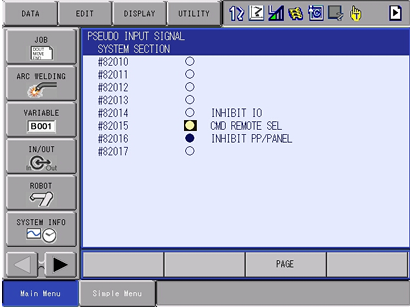
- Select
IN/OUT>PSEUDO INPUT SIGNAL. - Move the cursor to
#82015 CMD REMOTE SELand pressINTER LOCK+SELECT.
The commands need the key of the pendant in the remote position.
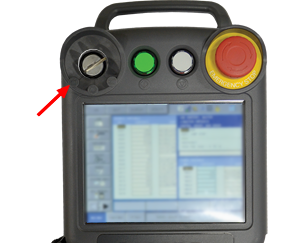
To use the key for the remote control, copy #80011 (key in the remote position) to #40042 (remote
control enabled) with the ladder editor:
- Select
IN/OUT>LADDER EDITOR. - Check that no other rung writes
#40042, then add this rung:

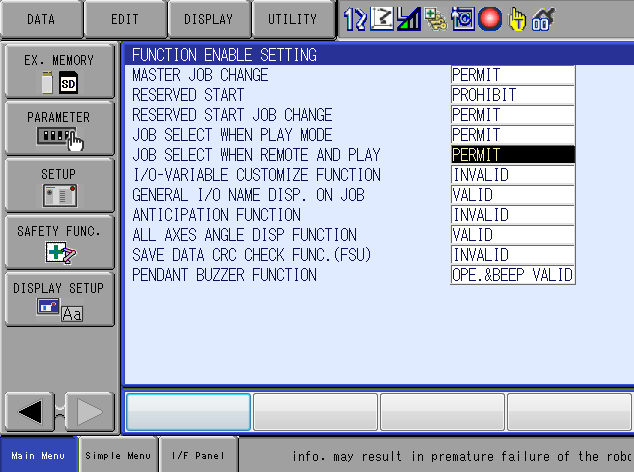
- Select
SETUP>FUNCTION ENABLE. - Set
JOB SELECT WHEN REMOTE AND PLAYtoPERMIT. On the Smart Pendant, setSC2 224to0.
To send a file that already exists on the controller:
- Select
PARAMETER>RS. - Set
RS029to1andRS214to1.
The folder UnderAutomation.Yaskawa.ObfuscatedSources
contains every public type and member of the SDK, with its XML documentation. The bodies of the methods
are replaced by "Source is hidden". Use it to:
- browse the public API and its documentation on GitHub;
- jump to a definition from your code editor;
- see the structure of the code that is delivered with a source license.
The source license gives the complete source code of the library, with the Visual Studio solution. See the license page of the documentation.
| Target framework | Supported |
|---|---|
| .NET 10.0 / 9.0 / 8.0 / 6.0 / 5.0 | yes |
| .NET Core 3.0 | yes |
| .NET Standard 2.1 / 2.0 | yes |
| .NET Framework 4.0 to 4.8 | yes |
| .NET Framework 3.5 | yes |
- Operating systems: Windows, Linux, macOS.
- No native dependency. The netstandard2.0 build uses the NuGet package
System.Text.Encoding.CodePages. - Controllers: Yaskawa YRC1000 (micro), MOTOMAN NEXT, DX100 / DX200, FS100, ERC / XRC / MRC, with the High Speed Ethernet Server.
This SDK needs a commercial license. A 30-day trial starts at the first use, no key needed.
- License agreement: underautomation.com/yaskawa/eula and License.md
- Trial, license key and source license: underautomation.com/yaskawa/documentation/license
- Prices and quote: underautomation.com/yaskawa
- Documentation: underautomation.com/yaskawa/documentation
- Issues: GitHub Issues
- Contact: underautomation.com/contact