




UnderAutomation.Fanuc is a fully managed .NET SDK that communicates with Fanuc robot controllers (R-J3iB, R-30iA, R-30iB, R-50iA) and with ROBOGUIDE. Nothing is installed on the robot. No PCDK and no Robot Interface are needed on the PC.
Use it to read and write variables, registers and I/O, run and stop programs, read and reset alarms, transfer files, read the state of the robot and move it, from a normal .NET application. It also computes the kinematics and plans trajectories offline.
- Product page: underautomation.com/fanuc
- Documentation: underautomation.com/fanuc/documentation
- Also available for Python: Fanuc.py, and for LabVIEW: Fanuc.vi
- Kinematics of the CRX cobots in the browser, built with this SDK: fanuc-kinematics.underautomation.com (sources)
| Feature | Protocol | Controller option |
|---|---|---|
| Run, pause, hold, abort programs, read and write variables, set and simulate ports | Telnet KCL | none |
| Upload and download files, read variable files, registers, I/O, alarms, safety status, diagnostics | FTP | none |
| Fast read and write of registers, I/O, flags, system variables, current position, alarms | SNPX | R553 "HMI Device SNPX" on FANUC America controllers (R650 FRA), none on FANUC Ltd. controllers (R651 FRL) |
| Programs, source lines, variables, registers, I/O, comments, kinematics on the controller | CGTP (web server of the controller) | none |
| Motion instructions sent from the PC, with a status per instruction | RMI | R912 |
| Real-time motion at every communication cycle: trajectories, target tracking, I/O | Stream Motion | J519 |
| Forward and inverse kinematics, 80+ arm models | offline | none |
| Motion planner: J, L, C motions, FINE, CNT, CR, splines, shapes, jerk limits | offline | none |
Most features work with the standard protocols of every Fanuc controller. The SDK uses the RMI, Stream Motion and SNPX options when the controller has them.
A Windows Forms application shows every feature of the SDK. Its source code is in this repository, in
UnderAutomation.Fanuc.Showcase.Forms.
Download: UnderAutomation.Fanuc.Showcase.Forms.exe (all releases)
Read variables:

Move the robot:

Read and write registers with SNPX:

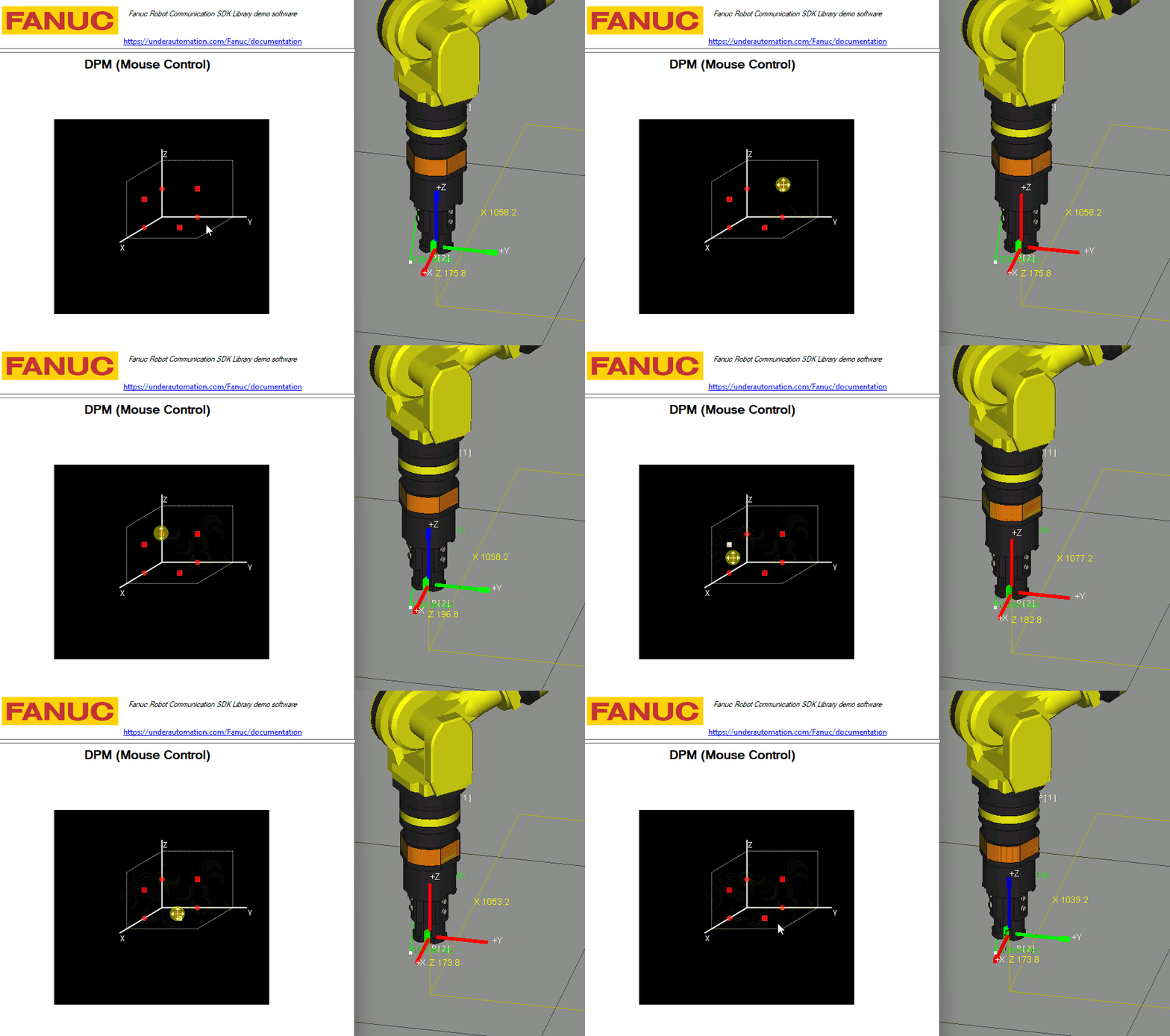
Move the robot with a joystick or a 3D mouse:
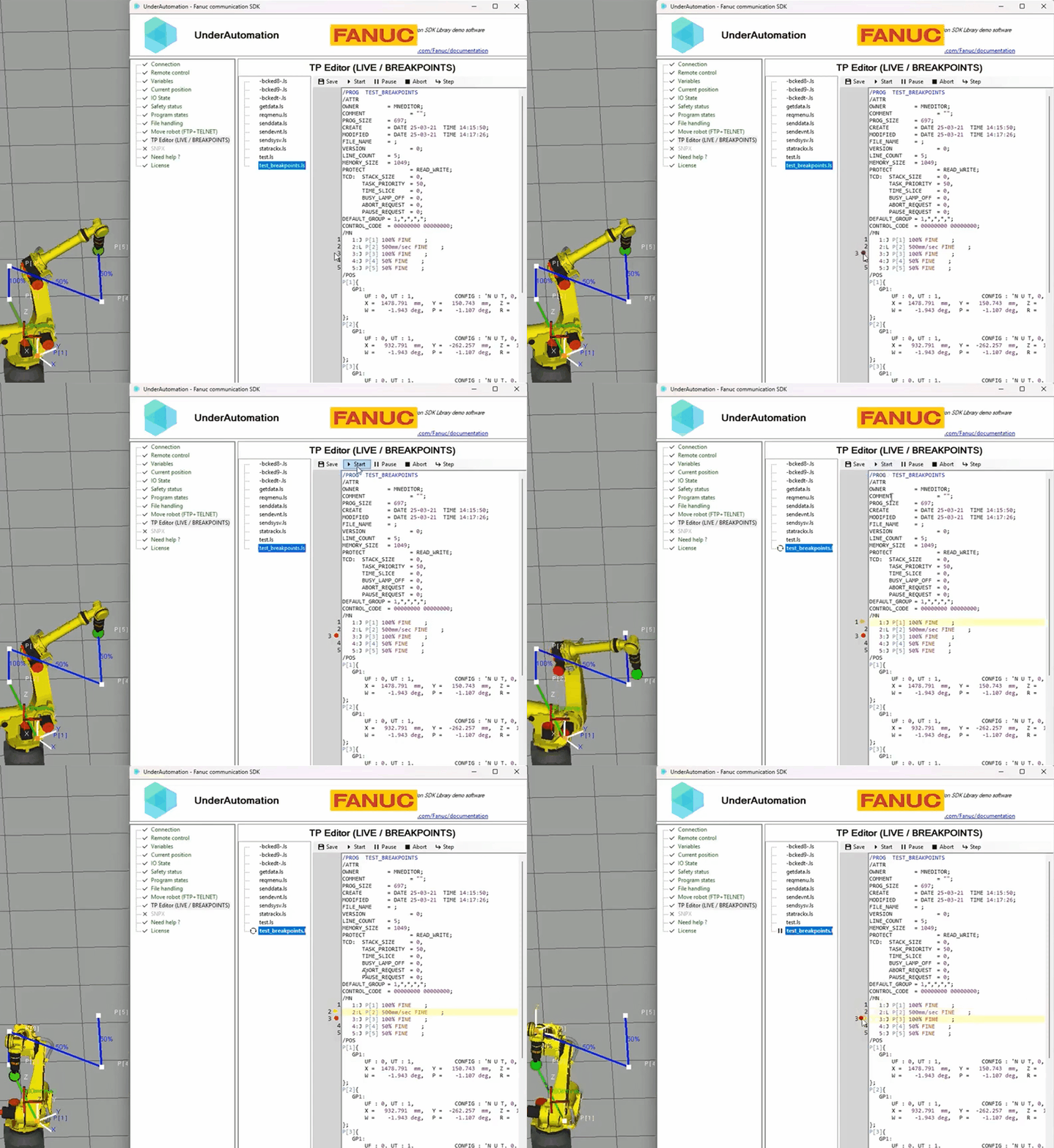
TP editor with breakpoints:
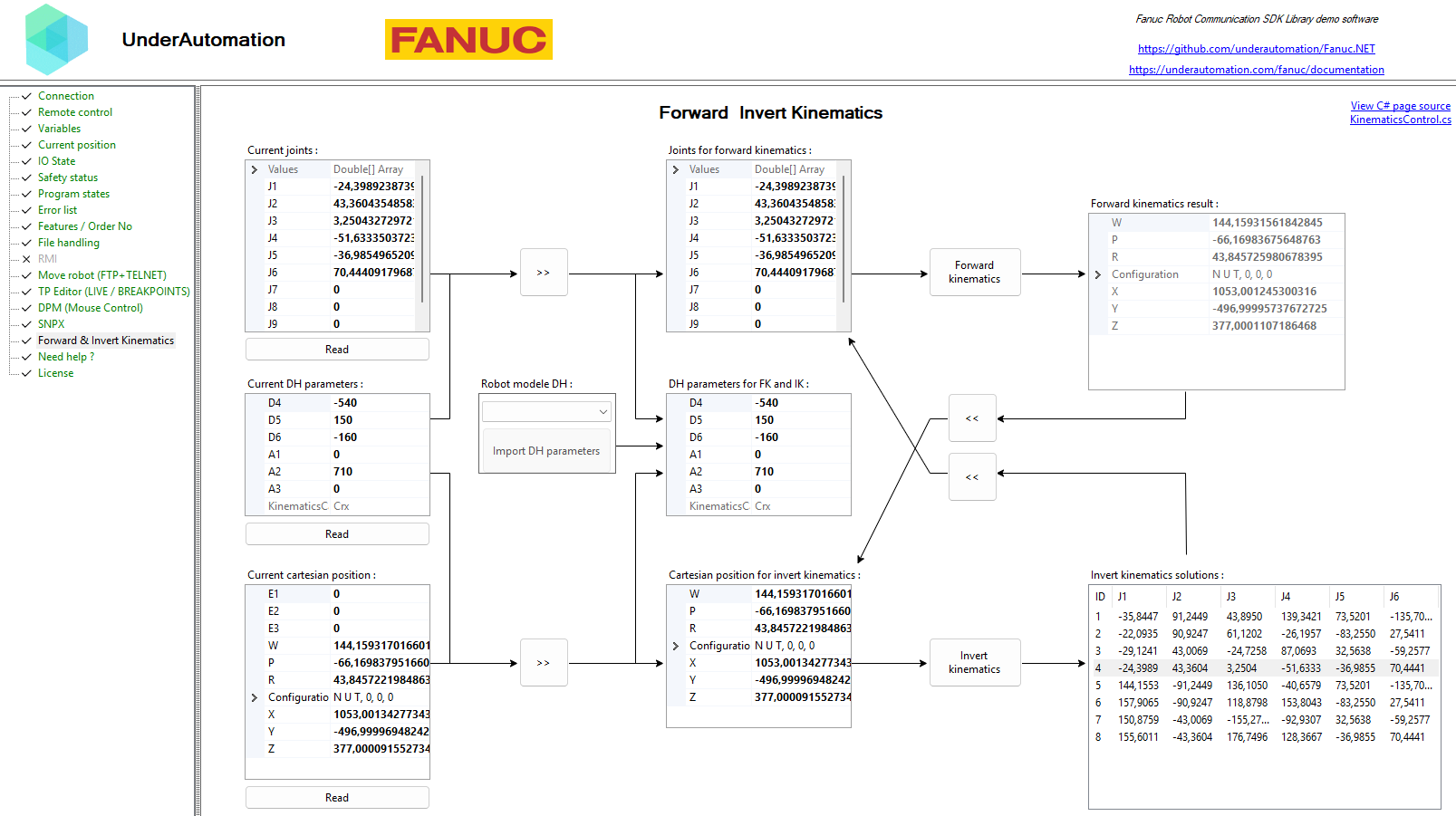
Forward and inverse kinematics:
dotnet add package UnderAutomation.FanucOr with the NuGet Package Manager console:
Install-Package UnderAutomation.Fanuc
You can also download UnderAutomation.Fanuc.zip from the releases page. It contains one folder per target framework. On Windows, unblock the zip file before you extract it (right-click, "Properties", "Unblock"), then reference the DLL of your framework.
using System;
using UnderAutomation.Fanuc;
using UnderAutomation.Fanuc.Common;

// The SDK runs in trial mode for 30 days. Register your key to remove the trial limit.
FanucRobot.RegisterLicense("Your Company", "your-license-key");

var robot = new FanucRobot();

// IP address of the controller, or the folder of a ROBOGUIDE robot
var parameters = new ConnectionParameters("192.168.0.1");
parameters.Language = Languages.English; // Japanese and Chinese controllers are also supported

parameters.Telnet.Enable = true;
parameters.Telnet.TelnetKclPassword = "your_telnet_password";

parameters.Ftp.Enable = true;
parameters.Ftp.FtpUser = "";
parameters.Ftp.FtpPassword = "";

parameters.Snpx.Enable = true;

robot.Connect(parameters);

float r1 = robot.Snpx.NumericRegisters.Read(1);
Console.WriteLine($"R[1] = {r1}");

robot.Disconnect();
Enable only the protocols you use. Each protocol needs its own setup on the controller, see Robot configuration.
Telnet KCL (Karel Command Line) sends commands to the controller. It needs no option on the controller.
// Reset alarms
robot.Telnet.Reset();

// Start, pause, hold, continue and abort programs
robot.Telnet.Run("MyProgram");
robot.Telnet.Pause("MyProgram");
robot.Telnet.Hold("MyProgram");
robot.Telnet.Continue("MyProgram");
robot.Telnet.Abort("MyProgram", force: true);

// Write variables
robot.Telnet.SetVariable("my_variable", 42);
robot.Telnet.SetVariable("$RMT_MASTER", 1);

// Set an output port (DOUT[2] = 0)
robot.Telnet.SetPort(KCLPorts.DOUT, 2, 0);

// Simulate an input port (DIN[3] = 1)
robot.Telnet.Simulate(KCLPorts.DIN, 3, 1);
robot.Telnet.Unsimulate(KCLPorts.DIN, 3);
SNPX (also known as SRTP or RobotIF) is the fastest way to read and write registers, I/O and variables.
// Position registers
Position register1 = robot.Snpx.PositionRegisters.Read(1);
robot.Snpx.PositionRegisters.Write(2, new CartesianPosition { X = 100, Y = 50, Z = 25, W = 180, P = 0, R = 0 });

// Numeric registers
float value = robot.Snpx.NumericRegisters.Read(1);
robot.Snpx.NumericRegisters.Write(2, 123.45f);

// Signals (UI, UO, GI, GO...)
bool ui1 = robot.Snpx.UI.Read(1);
robot.Snpx.UO.Write(3, true);

// System variables and Karel program variables
robot.Snpx.IntegerSystemVariables.Write("$RMT_MASTER", 1);
robot.Snpx.StringSystemVariables.Write("$ALM_IF.$LAST_ALM", "No alarms");
robot.Snpx.IntegerSystemVariables.Write("$[KarelProgram]KarelVariable", 1);

// Alarms
robot.Snpx.ClearAlarms();

// Current position, in the world frame and in a user frame
Position position = robot.Snpx.CurrentPosition.ReadWorldPosition();
robot.Snpx.CurrentPosition.ReadUserFramePosition(1);
FTP gives access to the files of the controller, and reads and decodes the variable files and the diagnostic files.
// Files
robot.Ftp.DirectFileHandling.UploadFileToController(@"C:\Programs\MyPrg.tp", "md:/MyPrg.tp");
robot.Ftp.DirectFileHandling.DownloadFileFromController(@"C:\Backup\Backup.va", "md:/Backup.va");
robot.Ftp.DirectFileHandling.DeleteFile("md:/OldProgram.tp");

// All the declared variables
var allVariables = robot.Ftp.GetAllVariables();
foreach (var variable in allVariables)
    Console.WriteLine($"{variable.Name} = {variable.Value}");

// Known system variables ($RMT_MASTER)
int remoteMode = robot.Ftp.KnownVariableFiles.GetSystemFile().RmtMaster;

// Safety status
SafetyStatus safetyStatus = robot.Ftp.GetSafetyStatus();
Console.WriteLine($"Emergency stop: {safetyStatus.ExternalEStop}");
Console.WriteLine($"Teach pendant enabled: {safetyStatus.TPEnable}");

// Current position of each motion group
CurrentPosition currentPosition = robot.Ftp.GetCurrentPosition();
GroupPosition group = currentPosition.GroupsPosition[0];
Console.WriteLine($"X={group.WorldPositions[0].X}, Y={group.WorldPositions[0].Y}, Z={group.WorldPositions[0].Z}");
Console.WriteLine($"J1={group.JointsPosition.J1}, J2={group.JointsPosition.J2}");
Every blocking FTP method also has an asynchronous version with a CancellationToken (not on .NET
Framework 3.5 and 4.0). The file reading methods have it on robot.Cgtp.Http too.
byte[] program = await robot.Ftp.DirectFileHandling.DownloadBytesFromControllerAsync("md:/MyPrg.ls");
var numreg = await robot.Ftp.KnownVariableFiles.GetNumregFileAsync();
When the controller refuses an operation, the SDK throws an FtpException with the reply of the
controller. Without an FTP user, the controller logs in at the OPERATOR level and can refuse the upload
of a program ("Operation password protected"). A program that is selected or runs cannot be replaced
(FtpException.ProgramInUse): select another program on the teach pendant, or with
robot.Cgtp.SelectProgram(...) (firmware V9.10 and later).
CGTP uses the web server of the controller. It gives access to the programs, the variables, the registers, the I/O and the kinematics.
// Variables
string value = robot.Cgtp.ReadVariableAsString("$MCR.$GENOVERRIDE");
robot.Cgtp.WriteVariable("$MCR.$GENOVERRIDE", 50);

// Registers
robot.Cgtp.WriteNumericRegisterAsInteger(1, 42);
var reg = robot.Cgtp.ReadNumericRegisterWithComment(1);
robot.Cgtp.WriteStringRegister(1, "Hello CGTP");

// Programs
robot.Cgtp.SelectProgram("MAIN", 1);
robot.Cgtp.RunProgram("MAIN");
robot.Cgtp.PauseAllPrograms();
robot.Cgtp.AbortTask("MAIN");

string[] allTp = robot.Cgtp.ListTpPrograms();
string[] macros = robot.Cgtp.ListPrograms(CgtpProgramType.Karel, CgtpProgramSubType.Macro);

// I/O
int ioValue = robot.Cgtp.ReadIo(CgtpIoPortType.DO, 1);
robot.Cgtp.WriteIo(CgtpIoPortType.DO, 1, 1);
robot.Cgtp.SimulateIo(CgtpIoPortType.DI, 3);
robot.Cgtp.UnsimulateIo(CgtpIoPortType.DI, 3);
With firmware V9.10 or later, CGTP also edits the source of TP programs and writes positions into them (first motion group only):
// Insert a line before line 3, replace line 5, delete 2 lines from line 4
robot.Cgtp.InsertSourceLine("MY_PROGRAM", "L P[5] 100mm/sec FINE", 3);
robot.Cgtp.ReplaceSourceLine("MY_PROGRAM", "J P[1] 50% FINE", 5);
robot.Cgtp.DeleteSourceLines("MY_PROGRAM", 4, 2);

// Write a Cartesian position to P[1]
var position = new Position(
    userFrame: 0,
    userTool: 1,
    jointsPosition: null,
    cartesianPosition: new ExtendedCartesianPosition(500, 200, 300, 0, 90, 0, 0, 0, 0)
);
robot.Cgtp.SetProgramPosition("MY_PROG", 1, position);

// Write a joint position to P[2]
var jointPosition = new Position(
    userFrame: 0,
    userTool: 1,
    jointsPosition: new JointsPosition { J1 = 0, J2 = 0, J3 = 0, J4 = 0, J5 = -90, J6 = 0 },
    cartesianPosition: null
);
robot.Cgtp.SetProgramPosition("MY_PROG", 2, jointPosition);
RMI (Remote Motion Interface) sends TP motion instructions to the robot. The SDK manages the instruction
buffer of the controller and returns a response object for each instruction. The teach pendant must be
disabled and the controller in AUTO mode before Initialize().
using UnderAutomation.Fanuc.Common;
using UnderAutomation.Fanuc.Rmi.Data;
using UnderAutomation.Fanuc.Rmi.TpInstructions;

var parameters = new ConnectionParameters("192.168.0.1");
parameters.Rmi.Enable = true;
robot.Connect(parameters);

// Starts the RMI_MOVE program on the controller
robot.Rmi.Initialize();
robot.Rmi.SetOverride(50);

// Linear motion to a Cartesian target
var linear = new LinearMotionTpInstruction
{
    SpeedType = RmiLinearSpeedType.MmSec,
    Speed = 100,
    TermType = RmiTerminationType.Fine,
    Target = new CartesianPositionWithUserFrame(500, 200, 300, 0, 90, 0, tool: 1, frame: 0)
};
RmiInstructionResponse response = robot.Rmi.SendTpInstruction(linear);
response.WaitForCompletion();
if (response.Status == RmiInstructionStatus.Error)
    Console.WriteLine("Error: " + response.ErrorText);

// Joint motion to joint angles
robot.Rmi.SendTpInstruction(new JointMotionJRepTpInstruction
{
    SpeedType = RmiJointSpeedType.Percent,
    Speed = 10,
    TermType = RmiTerminationType.Fine,
    Joints = new JointsPosition(10, -20, 30, 0, 60, 0)
});

// Circular motion through a via point
robot.Rmi.SendTpInstruction(new CircularMotionTpInstruction
{
    SpeedType = RmiLinearSpeedType.MmSec,
    Speed = 80,
    TermType = RmiTerminationType.Fine,
    Via = new CartesianPositionWithUserFrame(600, 100, 350, 0, 90, 0, 1, 0),
    Target = new CartesianPositionWithUserFrame(700, 0, 300, 0, 90, 0, 1, 0)
});

// Other instructions: wait for an input, wait a time, payload, call a program (RMI version 4 or later)
robot.Rmi.SendTpInstruction(new WaitDinTpInstruction { PortNumber = 1, Value = RmiOnOff.ON });
robot.Rmi.SendTpInstruction(new WaitTimeTpInstruction { Seconds = 0.5 });
robot.Rmi.SendTpInstruction(new SetPayloadTpInstruction { ScheduleNumber = 1 });
robot.Rmi.SendTpInstruction(new CallProgramTpInstruction { ProgramName = "MY_PROG" });

// Status and position
var status = robot.Rmi.GetStatus();
var pos = robot.Rmi.ReadCartesianPosition();
var joints = robot.Rmi.ReadJointAngles();

// Stops the RMI_MOVE program
robot.Rmi.Abort();
Stream Motion gives the position of the robot at every communication cycle (2 to 8 ms). The SDK does the
real-time part: it synchronizes the positions with the status of the robot, sends a few positions in
advance, and stops the robot smoothly when your application stops giving positions. The robot must run a
TP program with IBGN start[1] and IBGN end[1], in AUTO mode at 100% override.
var parameters = new ConnectionParameters("192.168.0.1");
parameters.StreamMotion.Enable = true;
parameters.StreamMotion.ProtocolVersion = 1; // 1, 2 or 3, not higher than $STMO.$USABLE_VER
robot.Connect(parameters);

// Reads the limits of the robot, starts the status output and measures the communication cycle
var sm = robot.StreamMotion;
sm.StartMonitoring();

StreamMotionStatus status = sm.LastStatus;
Console.WriteLine($"J1={status.JointPosition.J1:F3} Moving={status.IsMoving}");

// J1 +10 degrees then back, at 20% of the velocity limits
var planner = new MotionPlanner(sm.JointLimits, null);
JointsPosition start = sm.QueueEndJointPosition;
var target = new JointsPosition(start.Values) { J1 = start.J1 + 10 };
Trajectory trajectory = planner.CreateJointPath(start)
    .MoveJoint(target, 20, Termination.Cnt(100))
    .MoveJoint(start, 20, Termination.Fine())
    .Build();

// The motion starts when the TP program reaches IBGN start
int motionId = sm.Enqueue(trajectory);
sm.WaitForMotion(motionId, 60000);

// Follow a target that can change at any time, at 30% of the velocity limits
sm.StartTracking(PositionFormat.Joint, 30);
sm.SetJointTrackingTarget(target);
sm.WaitForIdle(10000);
sm.StopTracking();

// I/O during the motion
sm.AddIOMonitor(IOType.DI, 1);      // reads DI[1] to DI[16] during the session
bool di3 = sm.GetIO(IOType.DI, 3);
sm.WriteIO(IOType.DO, 1, true);     // written with the next position

// Releases the TP program: it continues after IBGN end
sm.Finish(10000);Override, Pause(), Resume() and Abort() slow down or stop the trajectories on their path. To
compute each position yourself, handle the SetpointRequested event and call StartCallbackStreaming().
Documentation: Stream Motion.
The SDK computes the forward and inverse kinematics offline, from Denavit-Hartenberg parameters. It contains the parameters of more than 80 arm models (CRX cobots and OPW arms).
using UnderAutomation.Fanuc.Kinematics;

JointsPosition position = new JointsPosition(10, 20, 120, 0, 0, 25);

// DH parameters of a CRX-10iA/L
DhParameters dh = new DhParameters(-540, 150, -160, 0, 710, 0);

// Or from a known arm model
dh = DhParameters.FromArmKinematicModel(ArmKinematicModels.CRX10iA);

// Or from OPW parameters (M-10iA/7L)
dh = DhParameters.FromOpwParameters(0.15, -0.20, 0.60, 0.86, 0.10);

// Or from a connected robot (SYSMOTN file)
dh = DhParameters.FromSymotnFile(robot.Ftp.KnownVariableFiles.GetSymotnFile())[0];

// Forward kinematics
CartesianPosition pose = KinematicsUtils.ForwardKinematics(position, dh);

// Inverse kinematics: every solution
JointsPosition[] positions = KinematicsUtils.InverseKinematics(pose, dh);The namespace UnderAutomation.Fanuc.Motion creates trajectories offline, within velocity, acceleration
and jerk limits. Motions are described as in a TP program: J, L and C motions with FINE, CNT or CR
termination. A trajectory can be sent with Stream Motion, sampled for a simulation, or checked against
the limits of the robot.
using UnderAutomation.Fanuc.Motion;

// Limits of each axis: read them with robot.StreamMotion.ReadLimits().ReferenceLimits
var jointLimits = new JointLimits(
    new double[] { 120, 120, 180, 180, 180, 180 },         // velocity, deg/s
    new double[] { 300, 300, 450, 675, 675, 675 },         // acceleration, deg/s2
    new double[] { 1125, 1125, 1687, 2530, 1265, 2530 });  // jerk, deg/s3
var cartesianLimits = new CartesianLimits(500, 2000, 10000, 90, 360, 1800);
var planner = new MotionPlanner(jointLimits, cartesianLimits);

// J P[1] 50% CNT100, J P[2] 50% FINE
var home = new JointsPosition(0, 0, 0, 0, -90, 0);
var pick = new JointsPosition(30, 20, -10, 0, -70, 30);
Trajectory joint = planner.CreateJointPath(home)
    .MoveJoint(pick, 50, Termination.Cnt(100))
    .MoveJoint(home, 50, Termination.Fine())
    .Build();

// L 200mm/sec CR10, then a circle of radius 30 mm at 150 mm/s
var plane = new XYZWPRPosition(600, 0, 250, 0, 0, 0); // origin = center of the circle
Trajectory cartesian = planner.CreateCartesianPath(new XYZWPRPosition(500, 0, 300, 180, 0, 0))
    .MoveLinear(new XYZWPRPosition(600, 0, 300, 180, 0, 0), 200, Termination.Cr(10))
    .AddCircle(plane, 30, 150, Termination.Fine())
    .Build();

// Duration, one position per cycle
Console.WriteLine($"Duration: {joint.Duration:0.000} s");
JointsPosition[] samples = joint.SampleJoints(0.008);

// Velocity, acceleration and jerk of each axis, computed as the robot does
TrajectoryReport report = joint.Check(jointLimits, 0.008, false);
The planner also creates splines (MoveSpline(), MoveJointSpline()), shapes (AddRectangle(),
AddPolygon(), AddHelix(), AddSpiral()), and trajectories from your own positions
(Trajectory.FromJointSamples(), Trajectory.FromTimedJoints()...). XYZWPRPosition gives quaternions
(GetQuaternion()) and frame changes (FlangeToTcp(), WorldToUserFrame()...). Documentation:
Motion planner.
- Go to
SETUP > Host Comm. - Select
TELNETand press[DETAIL]. - Set a password and restart the controller.
Tutorial: underautomation.com/fanuc/documentation/telnet-enable-on-robot
- Go to
SETUP > Host Comm > FTP. - Set a user and a password.
- Do a cold start.
- FANUC America parameters (R650 FRA): the controller needs option R553 "HMI Device SNPX".
- FANUC Ltd. parameters (R651 FRL): no option is needed.
- Check that option J519 Stream Motion is installed (
Features.HasStreamMotion). - Set
$PARAM_GROUP[1].$SV_OFF_ENB[*]toFALSE. - Run a TP program with
IBGN start[1]andIBGN end[1], in AUTO mode at 100% override.
Tutorial: underautomation.com/fanuc/documentation/stream-motion
The folder UnderAutomation.Fanuc.ObfuscatedSources contains
every public type and member of the SDK, with its XML documentation. The bodies of the methods are
replaced by "Source is hidden". Use it to:
- browse the public API and its documentation on GitHub;
- jump to a definition from your code editor;
- see the structure of the code that is delivered with a source license.
The source license gives the complete source code of the library, with the Visual Studio solution. See the license page of the documentation.
| Target framework | Supported |
|---|---|
| .NET Standard 2.1 / 2.0 (also .NET Core 2.0 and later, .NET 5 to 10) | yes |
| .NET Framework 4.0 to 4.8 | yes |
| .NET Framework 3.5 | yes |
- Operating systems: Windows, Linux, macOS.
- No native dependency. The .NET Standard targets depend on the NuGet package
System.Text.Encoding.CodePages. - Controllers: R-J3iB, R-30iA, R-30iB, R-50iA, and ROBOGUIDE.
This SDK needs a commercial license. A 30-day trial starts at the first use, no key needed.
- License agreement: underautomation.com/fanuc/eula and License.md
- Trial, license key and source license: underautomation.com/fanuc/documentation/license
- Prices and quote: underautomation.com/fanuc
- Documentation: underautomation.com/fanuc/documentation
- Issues: GitHub Issues
- Contact: underautomation.com/contact