Click this screenshot to watch the explainer video:
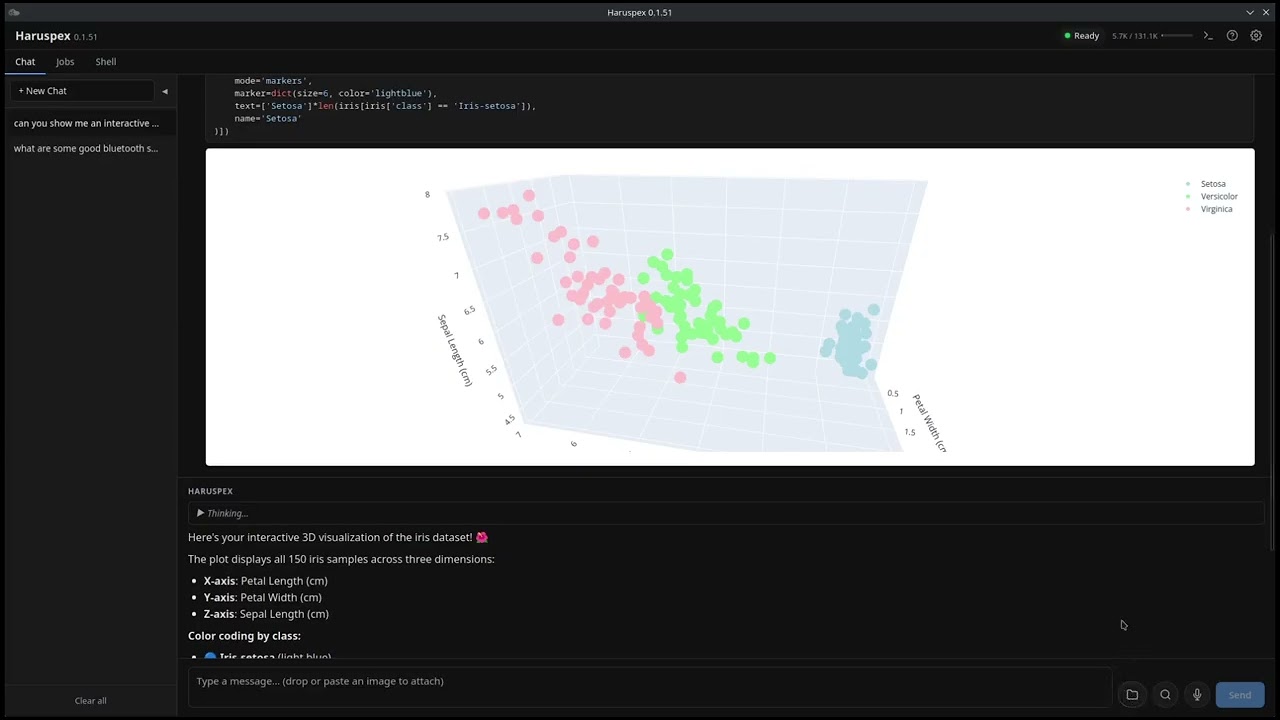
Haruspex is a desktop AI researcher and coding tool that runs entirely local by default. It works on Linux, Windows and macOS. There is no account to create and no telemetry. Your conversations and the model's answers stay on your device. You do not need a separate inference server (ollama, LMStudio, Lemonade, vLLM, etc...) as Haruspex will default to automatically downloading an appropriate model for your system and will run it locally. If you prefer to manage your own llms you can turn this off and use a remote model instead.
-
Privacy — Your conversations and the model run on your machine. Searches do hit the web, but HTTP proxies and SearXNG are supported so you can hide where they come from.
-
Open Source / Open Weight — Open weight models mean no monthly bill and no vendor lock-in.
-
Consumer Hardware — We target normal consumer graphics, from integrated graphics up to 32 GB discrete GPUs. The app looks at your hardware on first run and suggests a model that fits.
On 8 GB or less you get Qwen 3.5 9B (or Qwen 3.5 4B if memory is tight). These small models are remarkably capable for their size and they do research well, though they aren't great at coding tasks.
The coding features — Code mode in the Shell tab, guided planning, autonomous coding, audit jobs, and the Python sandbox in the Chat tab — will work much better with a bigger model. We recommend Qwen 3.6 35B-A3B or Qwen 3.8 27B, which need at least 16 GB of VRAM but better quantizations are available for those with 24 and 32 GB of VRAM. You can also point those features at a bigger model on another machine, or at OpenRouter (though you lose the privacy of running locally).
-
Human Enablement, Not Human Replacement — Many projects are building fully autonomous agents that replace people. This is not one of them. Haruspex is meant to help you learn, create, and fix things, with you still in the chair.
- Web research — Ask a question, and it searches the web, reads the results and answers. Turn on deep research for a slower, more thorough answer that uses more sources.
- Files (you opt in) — Pick a working directory in the chat tab and the model can read and write files there, and only there. It handles text, PDF, Word, Excel, PowerPoint, OpenDocument and images. Great for creating reports from your research. (details)
- Python sandbox — The model can write and run Python inside the app, in a sandboxed Pyodide environment. It can install packages on demand and make HTTP requests. Use it to make charts, do maths, or build documents. It asks before each run, and it is off by default (Settings → Agent → Python Sandbox). Works best with a larger model.
- Pictures in answers (off by default) — Turn on Include images in Settings → General and answers about visual things — a place, an animal, an object, a person — come with one to three relevant pictures. They come from Openverse, Wikimedia Commons and Wikipedia, and each one shows who made it and under what licence. Haruspex downloads them itself, so the site never sees your computer, and it keeps them on this device. Small models often look for a picture and then forget to put it in the answer, so when that happens the pictures it found appear under the answer instead of beside the paragraph — you still get them.
- Vision — Show it an image or a scanned PDF and it can describe or read it.
- Voice — Speak your question with push-to-talk, and have answers read aloud.
- Memory (off by default) — When you turn it on, Haruspex quietly reads your finished conversations, keeps the stable facts (your preferences, your corrections, ongoing project details) and brings the relevant ones into later chats. You can also just say "remember that…". All of it stays on this device — the text never leaves it. You can mark a single chat as incognito, and you can read, edit or delete anything it remembered. (details)
- Open in shell — If an answer ends with "run this command", press the
>_button to open the whole conversation in a new Shell tab, where the commands become buttons you can run. - Remote access (off by default) — Let other devices on your home network chat with your Haruspex through a web page, using your computer's GPU. Useful when your main machine is busy with a game and you want to ask a question from a phone or laptop. Share a link or scan a QR code. (details)
- Email (off by default, read-only) — Connect an IMAP account (Gmail, Fastmail, iCloud, Yahoo or custom) so the model can summarise and search your recent messages. It can never send. (details)
- Conversations are saved — Chat history lives in a local SQLite database and survives restarts.
- A real terminal (Linux, macOS and Windows — PowerShell and WSL2 on Windows) with an assistant beside it. Open several shell tabs at once.
- Send output to the assistant — One click sends the last command and its output, or a selection, to the assistant to explain.
- Read-only by default — The assistant can read config files and logs anywhere on your system and suggest fixes, but it never runs anything. Suggested commands appear as cards you click to paste at your prompt. Risky patterns (
sudo,rm -rf,dd of=,curl | sh,Remove-Item -Recurse -Force) get a red chip. - Code mode (off by default) — Turn it on per session to let the assistant edit files and run commands in your live terminal. Commands it considers risky stop and ask you first; commands it considers safe run on their own.
⚠️ Please read the AI safety disclaimer first. This is a coding feature — expect much better results with a larger model.
Save a prompt once and run it again later, by hand or on a schedule, without sitting there. There are four kinds of job: research, audit, guided planning and autonomous coding. Each job can use its own model, so you can send a heavy job to a big remote model while your local model keeps serving the Chat and Shell tabs. (details)
Audit, guided planning and autonomous coding are coding-focused. They need a larger model to be useful.
- Local (default) — A bundled
llama-serverruns the model on your GPU. Vulkan on Linux and Windows, Metal on macOS. - Your own server — Point Haruspex at any OpenAI-compatible server you already run (llama.cpp, LM Studio, Ollama, vLLM and others). (details)
- OpenRouter (cloud, off by default) —
⚠️ This one is not local and may not be private. Your prompts leave your device and go to OpenRouter's servers, under whatever privacy policy OpenRouter and the model provider have. We include it anyway because some people want access to large frontier models — especially for the coding features —. Add your API key in Settings → Inference and pick from around 300 models. It stays off until you turn it on, and the app labels it clearly while it is on. Local inference is still the recommended setup for privacy.
- First-run wizard — Checks your hardware and downloads a model that fits.
- Log viewer — Copy the logs of each background process from the toolbar, so bug reports are easy.
- Dark mode — Follows your system, or set it yourself.
Warning
Haruspex is an AI assistant, and AI models hallucinate. Check before you act.
The model can be confidently wrong. It can invent facts, misread a file or some command output, and — this matters most in the Shell tab — suggest commands that are wrong, dangerous or destructive (deleting data, changing system settings, exposing secrets). The small local models this project targets make these mistakes more often than large cloud models do.
Haruspex is built around human enablement, not human replacement. By default the Shell assistant is read-only and runs nothing: every command it suggests lands at your prompt for you to read and run yourself, with risky patterns (sudo, rm -rf, dd of=, curl | sh, …) flagged. But if you turn on Code mode, the assistant runs commands itself in your live terminal. Commands it flags as risky stop and ask you first, but anything it considers safe runs on its own — and you can even turn that prompt off in Settings. Code mode is off by default and you turn it on per session. Only turn it on for machines and projects you are willing to let the model touch. These flags and prompts help, but they are not a guarantee. You are the last line of defence.
Before running anything the model suggests:
- Read the command and understand it. If you do not understand it, do not run it.
- Take extra care with commands that delete files, change system settings, pipe a download into a shell, or touch passwords and keys.
- Keep backups of anything you cannot afford to lose.
Haruspex is provided "as is", without warranty of any kind. You use it — and any command or output it produces — at your own risk. The authors and contributors are not liable for any damage, data loss or other harm that comes from using it. See the License for the full disclaimer.
Download the latest release for your platform from the Releases page.
Note on code signing: Haruspex binaries are not code-signed on macOS or Windows. macOS Gatekeeper will refuse to open the app directly, and Windows SmartScreen will warn you before running the installer. See the notes below for how to get past these warnings.
# The .deb package handles most dependencies automatically
sudo apt install libwebkit2gtk-4.1-0 libayatana-appindicator3-1# The .rpm package handles most dependencies automatically
sudo dnf install webkit2gtk4.1 libappindicator-gtk3# Use the .AppImage — no package manager dependencies needed
chmod +x Haruspex_*.AppImage
./Haruspex_*.AppImageRun the .msi or .exe installer. The MSVC runtime is included — nothing else to install.
Because the installer is not code-signed, Windows SmartScreen shows a "Windows protected your PC" warning. Click More info → Run anyway.
Open the .dmg and drag Haruspex to Applications. Because the app is not code-signed, right-click it the first time and choose Open to get past Gatekeeper.
Haruspex runs the model on your GPU. How much VRAM you have decides which model you get and how well the coding features work.
| Your GPU | Model you get | What to expect |
|---|---|---|
| Under 8 GB / iGPU | Qwen 3.5 4B | Chat, research and documents work. Slower. Coding features will struggle. |
| 8 GB | Qwen 3.5 9B | Good research and document work. Coding features will struggle. |
| 12 GB | Qwen 3.5 9B (Q6) | Same abilities, better quality answers. |
| 16 GB | Gemma 4 12B (Q6) | Coding features become usable, with room for very long conversations. |
| 24 GB | Qwen 3.6 35B-A3B or Qwen 3.8 27B | Everything, including the coding features. |
| 32 GB and up | The same two models, at higher-quality quants | The best local quality Haruspex offers. |
The first-run wizard picks one of these for you. You can change it later in Settings → Models, and you can re-run the wizard from Settings → Inference.
From 24 GB up, each tier offers two models. The default is the sparse mixture-of-experts model, which activates only a fraction of its parameters per token and so answers faster; the alternative is a dense model of similar size, which some people prefer. Both are listed in Settings → Models with their sizes.
Why a 12B at 16 GB and not something bigger? A bigger model has to fit its weights and the conversation in the same VRAM, and the conversation is not free. Gemma 4 12B keeps only 8 of its 48 attention layers at full range, so its share of the memory grows about four times more slowly per word than a 27B's — which is what lets this tier hold a very long conversation instead of spending everything on parameters and running out of room mid-task.
Short on VRAM? Settings → Inference has an option to keep the vision projector in system RAM. The projector only does work on messages that actually contain an image, so moving it out of VRAM buys a longer conversation — up to twice as much on the 8 GB tier, where it is the largest. Messages with images take a few seconds longer to process; nothing else changes.
Integrated graphics (Intel HD/UHD/Iris, AMD Vega/Radeon Graphics) will work, but much more slowly. Recent AMD APUs do better than older Intel iGPUs, and both are well behind a discrete card.
Apple Silicon Macs use unified memory and Metal, so even a base M1 with 8 GB should work, though more recent "Pro" Apple CPUs will be much faster.
If you want the coding features but have a less capable local GPU: point Haruspex at a bigger model on another machine (remote inference), or use OpenRouter and accept that those prompts leave your device.
Warning
Haruspex uses your GPU. While it is running, games and other GPU-heavy programs will be impacted, especially if you don't have enough VRAM to hold both the llm and your other programs resources. Close Haruspex before you play.
Press F1 (or click the ? in the header) to see this list in the app at any time.
| Shortcut | Action | Where |
|---|---|---|
F1 |
Show the keyboard shortcuts | Everywhere |
F2 (hold) |
Push-to-talk voice input — release to send | Main window |
F3 |
Read the last reply aloud (toggle) | Main window |
F4 |
Send recent shell commands and output to the assistant | Shell tab |
Ctrl/Cmd + N |
New conversation | Chat tab |
Ctrl/Cmd + + / - |
Zoom the interface in / out | Everywhere |
Ctrl/Cmd + 0 |
Reset the zoom | Everywhere |
Enter / Shift+Enter |
Send message / new line | Chat & Shell composers |
Esc |
Stop generating · close dialogs | Everywhere |
Ctrl+Shift+A |
Show or hide the assistant sidebar | Shell tab |
Ctrl+` |
Move focus between terminal and assistant | Shell tab |
Ctrl+Shift+C / V |
Copy selection / paste | Shell tab |
Ctrl+Shift+I (Cmd+Opt+I on macOS) |
Open the web inspector (devtools) | Everywhere |
The Jobs tab runs saved prompts without you watching — on a schedule or when you press run. Each run streams live in its own view, stops at the first error, and stays in that job's run history. If you start several, they run one after another.
There are four kinds of job:
- Research — A list of steps that run in order. Each step is a fresh conversation that receives the previous step's output, so you can chain "search → summarise → write a report" into one run. Each step can turn on deep research on its own.
- Audit — Used to audit code bases. Runs one prompt many times independently, groups the findings, checks each group against the source, and writes one report sorted into confirmed / refuted / uncertain. Running it many times cancels out the noise a small model produces in any single run. You can set the number of runs, the step budget per run, a read-only tool restriction, your own instructions, and an output file.
- Guided planning — Turns a rough idea into a written project overview and a plan split into phases, in the right dependency order. It asks you one question at a time and reads your codebase as it goes. It writes an
overview.mdandphase-NN-*.mdfiles, and stops at checkpoints so you can review or change things. A separate reviewer pass then looks for missing steps and decisions still marked "TBD". It only plans — it never writes code. A long run picks up where it left off if the app restarts. - Autonomous coding — Takes a folder of plan files (usually from a guided planning job), asks you about every open decision up front, then writes the code unattended: one small step at a time, each one checked and committed, with a deeper check at the end of every phase. Each run gets its own git branch. It finishes by writing a report of what it built, what is blocked and why, and what comes next.
These job types work much better with a bigger model. Audit, guided planning and autonomous coding all involve reading and writing code, which is where the 4B and 9B models are weakest. You can still use these jobs with a small model but don't expect great results.
Scheduling. Run a job by hand, or on a preset (hourly / daily / weekly) or a fixed interval while the app is open. While a job is running, Haruspex keeps your machine from going to sleep. Autonomous coding cannot be scheduled, because it starts by asking you questions.
Per-job model. By default a job uses your global backend (Settings → Inference backend). Any job can instead point at its own OpenAI-compatible server: base URL, optional API key, model ID, context size and whether it can see images. This is useful for sending a heavy audit or planning job to a bigger or faster model. Because that remote model and your local llama-server are separate, a job running remotely does not block the Chat or Shell tabs from using your local model at the same time.
Audit, guided planning and autonomous coding need a working directory — the model reads your code and writes its files there. Research jobs work with or without one.
Click the folder icon in the chat input to choose a working directory. The model can then read and write files, but only inside that directory. With no working directory set, it has no file access at all.
Read: text, markdown, CSV, JSON, YAML, TOML (fs_read_text); PDFs with layout preserved (fs_read_pdf); PDFs as images, for scans (fs_read_pdf_pages); Word .docx (fs_read_docx); Excel .xlsx as CSV (fs_read_xlsx); images, through the vision model (fs_read_image); folder listings (fs_list_dir).
Write: text (fs_write_text); find-and-replace edits (fs_edit_text); Word .docx and OpenDocument .odt (fs_write_docx / fs_write_odt); Excel .xlsx and OpenDocument .ods (fs_write_xlsx / fs_write_ods); PowerPoint .pptx and OpenDocument .odp (fs_write_pptx / fs_write_odp — experimental); PDFs (fs_write_pdf).
Download: any HTTP(S) file into the folder (fs_download_url), with a 50 MB limit and executables blocked. Freely licensed images from Wikimedia Commons (image_search — experimental). Images found on a web page (fetch_url_images — experimental, usually copyrighted).
Cannot: delete or move files, run scripts, or touch anything outside the working directory.
Overwrite protection: write tools will not quietly replace a file that already exists. If the target is already there, Haruspex stops and asks: Overwrite / Keep both / Cancel. Rework inside the same turn (write → read → correct → write) does not trigger the question.
The working directory belongs to one conversation and is not remembered after you close the app.
Memory is off by default. Turn it on in Settings → Memory.
When it is on, Haruspex reads your finished conversations in the background, picks out the facts that are likely to matter later — your preferences, corrections you made, ongoing project context — and brings the relevant ones into your next chat. You can also ask directly: "remember that I use fish, not bash."
Everything stays on this device. The text is never sent anywhere, and the embeddings used to find the right memory later are calculated on your machine. Turning memory on downloads a small embedding model once.
You can switch any single conversation to incognito so it is never read, ask to be prompted before anything is saved, and read, edit or delete every stored memory from the settings panel.
Remote access is off by default. Turn it on in Settings → Remote access.
It serves a small chat page over your local network. Anyone on your network with the link can chat with your Haruspex, using your computer's GPU. There is nothing to install on their side — a browser is enough, so phones and tablets work. Share the link, or let them scan the QR code.
This is useful when your main machine is doing something else, like running a game, and you want to ask a question from another device.
Things to know before you turn it on:
- Their conversations are saved on your machine and show up in your sidebar.
- The traffic is not encrypted, so only use this on networks you trust.
- On Windows, the firewall asks for permission the first time. Say yes, or nobody can connect. On Linux and Mac depending on your system settings you may need to manually open up the specified port in the system firewall.
- You can see who is connected, disconnect anyone, and rotate the link, which cuts off everybody using the old one.
Normally Haruspex runs its own llama-server with a model it downloaded. If you already run an OpenAI-compatible server, you can point Haruspex at it instead. The local server then never starts, and every chat request goes to your URL. There are two places to set this:
- First-run wizard — choose "Connect to an existing server" instead of "Download a model".
- Settings → Inference backend — switch between Local and Remote whenever you like. Switching to Remote stops the local server right away, so it stops using VRAM. Switching back starts it again with the model you had.
This is the global backend used by Chat and Shell. Individual jobs can override it with their own server. If your server handles more than one request at a time (vLLM, llama-server -np N, hosted APIs), turn on Allow parallel inference so chat and job turns can run together instead of queueing.
Detection. Haruspex probes the URL you enter in this order, and the richest backend that answers wins:
| Order | Endpoint | Matches |
|---|---|---|
| 1 | GET /api/service/status |
llama-toolchest — rich per-model metadata |
| 2 | GET /props |
Stock llama.cpp llama-server — exposes n_ctx and the loaded model |
| 3 | GET /v1/models |
Generic OpenAI-compatible (LM Studio, Lemonade, Ollama, vLLM, TGI, llamafile, koboldcpp, text-gen-webui …) |
| 4 | GET /api/tags |
Ollama's own endpoint, if its OpenAI-compatible one is switched off |
What gets filled in. The model list always. Context size and image support are filled in automatically when the server reports them (llama-toolchest and stock llama-server do; most generic servers do not, so you get editable fields instead).
Auth. Every probe and chat request can send an Authorization: Bearer <key> header. Leave it blank for servers that do not need one.
Besides your own servers, Haruspex supports OpenRouter directly. Add your API key in Settings → Inference and choose from the roughly 300 models it lists, complete with context length, image support, tool support and reasoning settings.
We include it because some people want a frontier model — usually for the coding features, where small local models struggle — and would rather decide that trade-off for themselves. It is off until you turn it on, and the app shows clearly when it is in use. Running locally is still the recommended setup if you value privacy.
Haruspex can connect to your email over IMAP so the model can summarise recent messages, find mail from a certain person, or read one full message when you ask. It is off by default, read-only and works with several providers.
Every provider needs 2-factor authentication on your account plus an app password — a 16-character code the provider creates for Haruspex. It is not your normal login password.
| Provider | IMAP host | Where to get an app password |
|---|---|---|
| Gmail | imap.gmail.com:993 |
https://myaccount.google.com/apppasswords |
| Fastmail | imap.fastmail.com:993 |
https://app.fastmail.com/settings/security/tokens |
| iCloud Mail | imap.mail.me.com:993 |
https://account.apple.com/account/manage |
| Yahoo Mail | imap.mail.yahoo.com:993 |
https://login.yahoo.com/account/security |
| Custom | you provide it | whatever your provider says |
Microsoft 365 and Outlook.com are not supported. Microsoft turned off basic authentication for those accounts, so there is no app-password path. OAuth support is planned later.
Setup. Settings → Integrations → Email, click "Add email account", pick a provider, enter your address and app password, click "Test connection", then switch the account on.
Tools. With at least one account switched on, the model gets three tools:
email_list_recent— a cheap list (subject, sender, date, snippet). Always called first.email_summarize_message— summarises one full message in a separate call, the same way web pages are summarised.email_read_full— returns one full message as-is, when a summary is not enough.
All three are hidden from the model completely unless an account is switched on. Credentials are stored in the same local settings file as your other secrets (no system keyring). Messages are fetched with BODY.PEEK[], so reading one never marks it as read. There is no sending at all.
| Provider | Setup | Notes |
|---|---|---|
| Auto (default) | None | Rotates between Yahoo, Brave, DuckDuckGo and Bing, taking turns, tracking which ones are healthy and failing over |
| DuckDuckGo | None | One engine only, may get rate limited |
| Brave Search API | API key in Settings | 2,000 free queries a month, most reliable |
| SearXNG | Instance URL in Settings | Unlimited, if you host it yourself |
| Browser-assisted | Chrome or Chromium installed | Drives a hidden browser window, so it can reach engines that block simple requests. Around twice as slow, and it uses about 1.2 GB of RAM while it runs. The browser starts when needed and quits when idle. |
When deep research is on, you are using Auto, and you have no Brave API key, the search proxy switches to slow mode: it waits longer between engines so they have time to recover during the same research turn. Setting a Brave API key or a SearXNG instance skips slow mode completely.
Code mode, guided planning, autonomous coding, audit jobs and the Python sandbox all ask the model to read and write code. The 4B and 9B models we recommend below 16 GB are good at research and weak at coding, so on those models these features will make mistakes, get stuck, or produce code that does not run.
They are still included because they work from 16 GB up, where the lineup moves to Gemma 4 12B and then to Qwen 3.6 35B-A3B and Qwen 3.8 27B, and because you can point any of them at a bigger model elsewhere. Set your expectations by your hardware.
The image sources are strong on places, animals, plants, landmarks, historical figures and general subjects, and weak on very recent products and events. If no good picture exists, the answer simply arrives without one.
On the 9B the model also sometimes picks a loosely related image, or puts one in an answer that did not need it. Turning Include images off in Settings → General stops it volunteering; asking for a picture directly still works.
If you ask Qwen 3.5 9b to do 2 things in one message — for example "Research X and Create a PDF report about it" — the model will usually do the research and write a good answer in the chat, but not actually create the file. Sometimes it even says it created a file that does not exist.
This is how small local models behave: after a long research turn, they prefer to finish by writing prose rather than making one more tool call. Haruspex pushes back on this with direct tool descriptions, reminders during the turn, and a recovery pass when a turn ends without the expected file, but it does not catch every case. Larger models typically do not suffer from this issue.
What to do: just ask again — "write that to a PDF". The second message almost always works, because the content is already in the conversation.
The presentation tools (fs_write_pptx, fs_write_odp) and the image tools (image_search, fetch_url_images) work, but treat them as experimental:
- Asking for research and a presentation with images in one message is unreliable. Do it in two or three messages: research first, then ask for the presentation.
image_searchuses Wikimedia Commons, which is great for landmarks, animals and general subjects, and has almost nothing for specific consumer products.- Slides can have a title, a bullet list (up to two levels) and one image. No tables, charts, speaker notes or custom layouts.
These limits come from the model, and they will improve as local models get better at using tools.
Each block below installs everything you need to build Haruspex on that platform — system libraries, the Vulkan shader tools, Rust (stable) and Node.js (22+). Copy and run the whole block.
# System libraries + Vulkan shader toolchain
sudo apt update && sudo apt install -y build-essential cmake pkg-config curl \
  libwebkit2gtk-4.1-dev libappindicator3-dev librsvg2-dev libasound2-dev \
  libvulkan-dev glslc spirv-headers libsonic-dev libpcaudio-dev libssl-dev libfuse2

# Node.js 22 (distro packages are usually too old)
curl -fsSL https://deb.nodesource.com/setup_22.x | sudo -E bash - && sudo apt install -y nodejs

# Rust (stable, via rustup)
curl --proto '=https' --tlsv1.2 -sSf https://sh.rustup.rs | sh -s -- -y# System libraries + Vulkan shader toolchain + Node.js
sudo dnf install -y @development-tools cmake pkg-config \
webkit2gtk4.1-devel libappindicator-gtk3-devel librsvg2-devel alsa-lib-devel \
vulkan-headers spirv-headers glslc sonic-devel pcaudiolib-devel openssl-devel nodejs npm
# Rust (stable, via rustup)
curl --proto '=https' --tlsv1.2 -sSf https://sh.rustup.rs | sh -s -- -y# Everything in one command. spirv-headers is required by llama.cpp's Vulkan
# backend and is NOT pulled in by shaderc, so it must be listed explicitly.
sudo pacman -S --needed base-devel cmake pkg-config \
webkit2gtk-4.1 libappindicator-gtk3 librsvg alsa-lib \
vulkan-headers shaderc spirv-headers fuse2 libsonic pcaudiolib rust nodejs npmOn a fresh Windows 11 install, run the included PowerShell setup script from a normal PowerShell window. It installs Git, Node.js LTS, the Rust MSVC toolchain, VS 2022 Build Tools, CMake, the Vulkan SDK and the WebView2 runtime with winget, and skips anything you already have:
Set-ExecutionPolicy -Scope Process -ExecutionPolicy Bypass
.\scripts\windows-setup.ps1
When it finishes, open a new terminal so the PATH changes take effect. Sidecar builds run from Git Bash with ./scripts/dev-setup.sh.
If you would rather install the prerequisites yourself: Visual Studio Build Tools (C++ workload), CMake, Vulkan SDK, Git for Windows.
# Command Line Tools, then system libraries + Rust + Node via Homebrew
xcode-select --install
brew install cmake pkg-config opus rust node
Prefer to manage Rust yourself? Skip
rustabove and use rustup.
git clone https://github.com/tmac1973/haruspex.git
cd haruspex

# Required on the first run. This builds the sidecars and downloads the other
# resources the app needs — ruff, PDFium and the Pyodide runtime. `make dev`
# only checks the sidecars, so it does NOT replace this step.
./scripts/dev-setup.sh

# Run the app (after the first time, this is all you need)
make devRun make help to see all targets:
| Target | Description |
|---|---|
make dev |
Run the app in dev mode (checks sidecars; run dev-setup.sh first) |
make check |
Run all checks (lint, format, typecheck, test) |
make fmt |
Auto-format all code (Prettier + cargo fmt) |
make sidecars |
Build sidecar binaries (llama-server, whisper-server, koko) |
make app |
Build the Tauri app packages (needs sidecars) |
make release-local |
Build everything: sidecars + app packages |
make clean |
Remove built sidecars, forcing a rebuild |
make clean-all |
Remove sidecars + Rust/frontend build artifacts |
make reset-data |
Remove all app data (models, db) for a fresh start |
| Platform | Path |
|---|---|
| Linux | ~/.local/share/com.haruspex.app/ |
| macOS | ~/Library/Application Support/com.haruspex.app/ |
| Windows | %APPDATA%\com.haruspex.app\ |
Use make reset-data to wipe this directory and start fresh (Linux/macOS).
| Component | Technology |
|---|---|
| App framework | Tauri 2.x (Rust backend, system webview) |
| Frontend | SvelteKit 5 (TypeScript, static SPA, Svelte 5 runes) |
| LLM inference | llama.cpp (Vulkan/Metal, with image support via mmproj) |
| Speech-to-text | whisper.cpp (Vulkan/Metal) |
| Text-to-speech | Kokoros (CPU) |
| Models (small) | Qwen 3.5 4B and Qwen 3.5 9B |
| Models (16 GB and up) | Gemma 4 12B, Qwen 3.6 35B-A3B and Qwen 3.8 27B |
| Python sandbox | Pyodide running in the app's webview |
| PDF text extraction | PDFium with custom layout reconstruction |
| PDF rendering (for vision) | PDF.js running in the Tauri webview |
| PDF creation | printpdf (pure Rust) |
| docx / xlsx | Custom zip+XML for docx reads/writes, calamine for xlsx reads, rust_xlsxwriter for xlsx writes |
| odt / ods / odp / pptx | Hand-written zip+XML following the OASIS OpenDocument and OOXML specs |
| Database | SQLite (via rusqlite) |
| Web search | Rotation of free engines, Brave Search API, SearXNG, or a local Chrome/Chromium |
Releases are automated with release-please:
- Commits on
mainmust use Conventional Commits (feat:,fix:,chore:,feat!:for breaking changes). - release-please keeps a pull request open, titled "chore(main): release X.Y.Z", that bumps the versions, updates
CHANGELOG.mdand collects the notes from each new commit. - Merge that PR to cut a release. That creates the
vX.Y.Ztag and a draft GitHub release with the changelog already filled in. - Pushing the tag runs the
Releaseworkflow, which builds the sidecars and the app for every platform and attaches the installers (Linux AppImage/deb/rpm, Windows NSIS/MSI, macOS DMG) to the draft. - Review the draft and click Publish.
To build locally: make release-local.
The Haruspex application icon comes from a photograph of the Piacenza Bronze Liver by Lokilech, from Wikimedia Commons, used under the Creative Commons Attribution-ShareAlike 3.0 Unported licence. See NOTICE.md for details.

Copyright © 2025–2026 Tim MacDonald.
Haruspex is free software: you can redistribute it and modify it under the terms of the GNU General Public License version 3, or (at your option) any later version, as published by the Free Software Foundation. The full text is in LICENSE.
In plain terms: you can use it, read it, change it and share it. If you share a changed version, that version has to be free software too, under the same licence, with its source available and the original credit kept.
Haruspex is distributed in the hope that it will be useful, but WITHOUT ANY WARRANTY — without even the implied warranty of MERCHANTABILITY or FITNESS FOR A PARTICULAR PURPOSE. See sections 15 and 16 of the GNU General Public License for details.
The application icon is licensed separately under CC BY-SA 3.0. See NOTICE.md.
Versions up to and including v0.1.61 were released under the MIT licence. That does not change retroactively — the licence applies from this commit onward.