Repository navigation
Home
See how your Wiser devices connect to their hub in Home Assistant. The card displays the network with product images, room labels and real parent/router connections. Tap a device for its Zigbee details, group devices by area, and save an arrangement that suits your dashboard.
This wiki documents stable 3.0.6, reviewed on 6 October 2026. User guides cover stable releases only; unreleased changes are not included. Older releases may have different controls, labels or layout-saving behaviour.
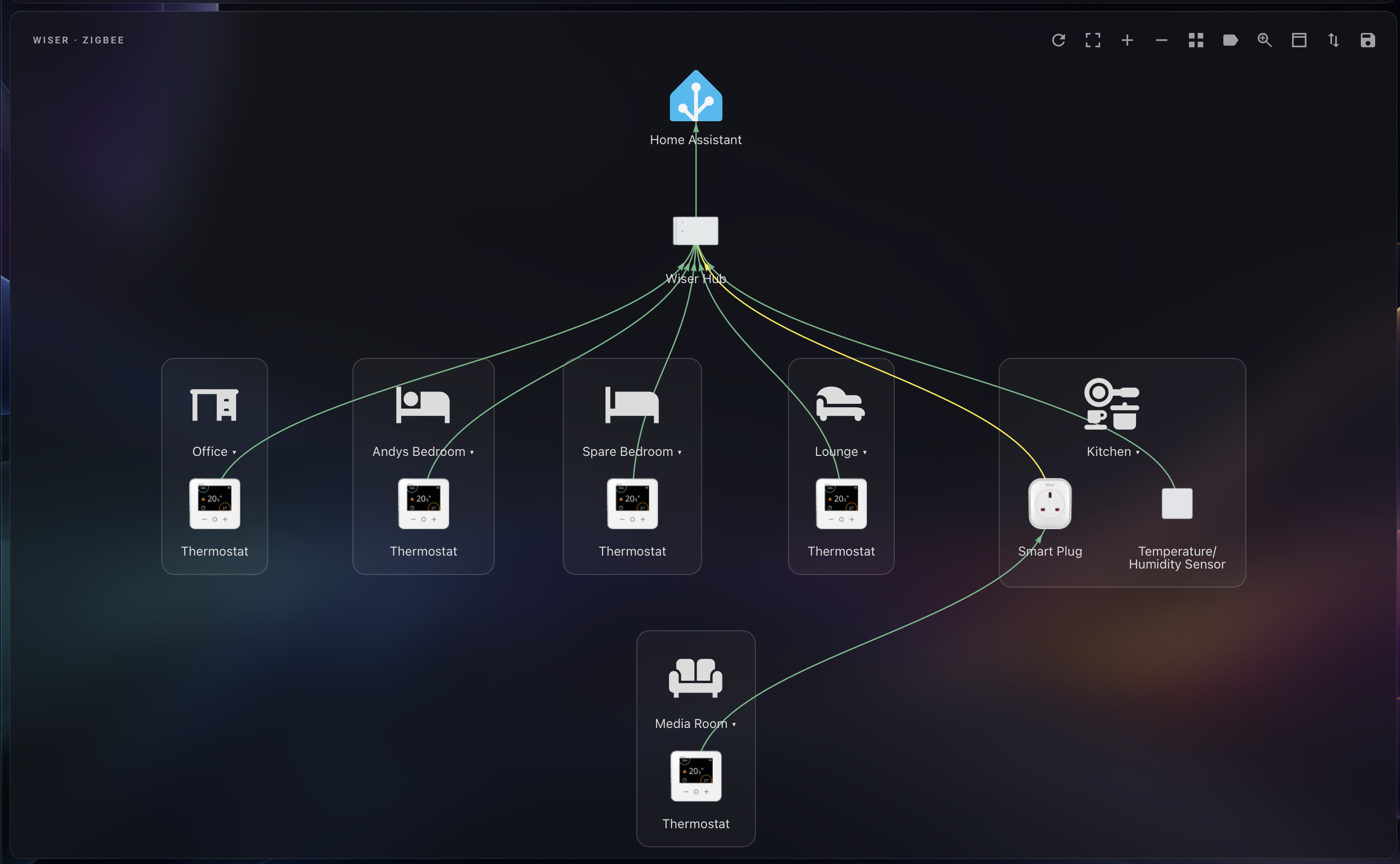
Map-only dashboard view with area grouping, the optional Home Assistant connection, and a device routed through a smart plug. Screenshot supplied on 30 September 2026.
- Install the card.
- Open Wiser → Zigbee in the unified sidebar panel, or add a dashboard card and choose its Wiser Hub in the visual editor.
- Configure the view and explore the map controls.
- Arrange devices and save your layout.
| Page | What you will find |
|---|---|
| Installation | Requirements, resource setup and upgrades |
| Sidebar panel | Unified Wiser panel, hub selection, automatic sizing and panel settings |
| Configuration | YAML reference and ready-to-use examples |
| Using the map | Toolbar, gestures, device information and signal colours |
| Areas and layouts | Orientation, area grouping and map sizing |
| Saving layouts | Dashboard and panel saves, browser storage and Copy/Paste |
| Troubleshooting | Loading, missing details and persistence problems |
| Development | Build, tests, demo and documentation maintenance |
The card includes English (US and British), German and French text and follows your Home Assistant profile language. Other languages use US English for card-specific text; native Home Assistant labels follow Home Assistant translations. Map and detail labels use Home Assistant device and area names, removing a leading Wiser prefix and redundant area names where appropriate.